Open from SharePoint
Open a library file in the browser. Save writes back to the same item so the link on the Drawing Task stays valid.
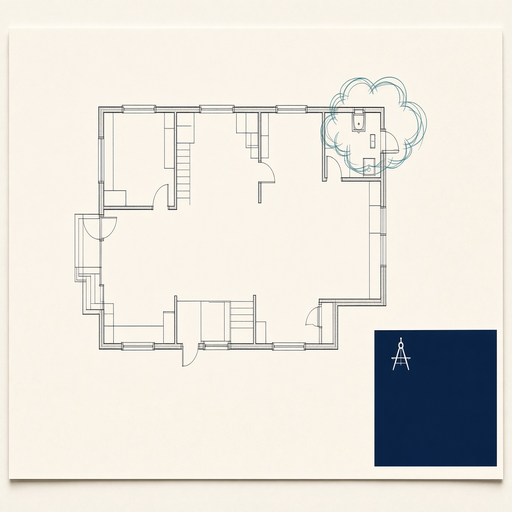

Drawing Markup Studio
MarkUp-N-Track opens SharePoint PDFs in the browser, keeps annotations as standard ISO PDF comments, and binds them to Jira Cloud Drawing Stories and Drawing Tasks.
Reviewers stay in the drawing. Status, ownership, and history stay in Jira.
Open a library file in the browser. Save writes back to the same item so the link on the Drawing Task stays valid.
A drawing code such as pro-001-0251 resolves to project PRO10251. Overview vs schematic and Rev tokens help pick the open Drawing Story.
Comments remain ordinary PDF annotations. Adobe, Bluebeam, Foxit, Edge, and Preview still display them if someone opens the file elsewhere.
Step 1
Open the PDF from SharePoint in MarkUp-N-Track. The app reads the filename, looks up the Jira site and project, and selects the matching open Drawing Story when it can.
Step 2
Create or select a Drawing Task. New text and shape markups are tagged to that task. Jira remains the system of record.
Step 3
Browse existing comments for a task, add more, or start a new task. Change Story and Task status using Jira’s allowed transitions.
Step 4
The Drawing Task stores a SharePoint hyperlink. Binding data lives in Jira plus recoverable PDF fields — not a closed file format.
v1 authenticates with each user’s Atlassian API token through a setup wizard. The token is stored only in the browser session.
The web app is associated with Entra application ID 58415ece-f2e7-4088-a5c3-2a4ede34c97c for SharePoint / Graph sign-in.
No guess when two stories match. Manual Project and Story controls stay visible as backup.